# Install N-Linx Agent
## Aim
To install and set up the tool that starts MediaRecorder when you start an observation in The Observer XT.
**important** Install N-Linx Agent on the computer with MediaRecorder.
## Prerequisite
You installed N-Linx Server on a computer in the network.
## Procedure
1. From my.noldus.com, download **N-Linx Agent Setup.exe.**
2. In the N-Linx Agent Setup window, select **MediaRecorder control** in the Drivers and Tools field and click **Next**.
3. Accept the terms in the End-User License Agreement and click **Install**.
## Connect N-Linx Agent to N-Linx Server
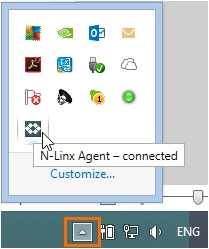
1. CLick the arrow in the bottom-right corner of your window to open the system tray. Then double-click the **N-Linx Agent** icon.
[](https://bookstack.noldus.com/uploads/images/gallery/2023-11/XxkvdqzzjlKT0kl5-image.png)
2. In the N-Linx Server Address field, enter the Computer name of the computer with N-Linx Server. See [To find the computer name](https://bookstack.noldus.com/To%20find%20the%20computer%20name).
You can also enter the IP address, but then the IP address of the computer with N-Linx Server must be fixed. Ask your system administrator for assistance.
If MediaRecorder runs on the same computer as N-Linx Server, leave the entry localhost in the N-Linx address field. N-Linx Agent then automatically connects with N-Linx Server.
**note** See [To change the port](https://bookstack.noldus.com/link/446#bkmrk-to-change-the-port) if the default port 5672 is already in use.
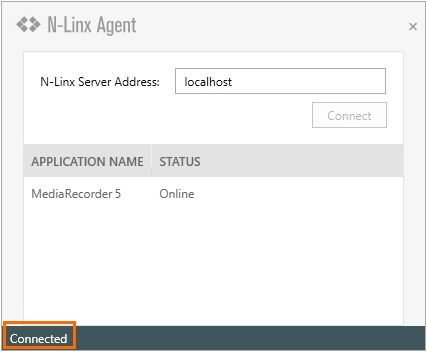
3. If the connection with N-Linx Server is established, the text **Connected** appears in the lower-left corner of the N-Linx Agent window.
[](https://bookstack.noldus.com/uploads/images/gallery/2023-11/lVHSJf0Ap71yzB3m-image.png)
### To find the computer name
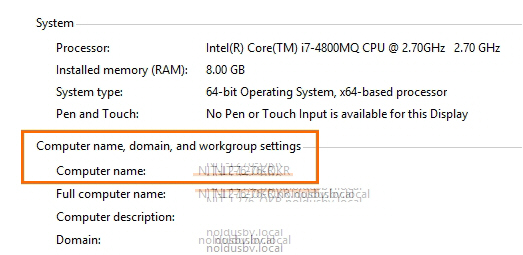
To find the name of the computer with N-Linx Server, open the Control Panel on that computer and choose **System**.
[](https://bookstack.noldus.com/uploads/images/gallery/2023-11/qE3poCvysQH5yBkH-image.png)
### To change the port
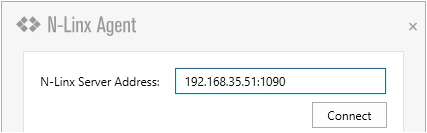
N-Linx Agent by default uses port 5672 to communicate with N-Linx Server. If this port is in use, type the new port after a colon in the **N-Linx Server Address** field. For example:
[](https://bookstack.noldus.com/uploads/images/gallery/2023-11/PiqQLLQLE6z1PK59-image.png)
**IMPORTANT** Select the same port in all components that communicate with N-Linx Server. Also, disable Windows FireWall for this port.
## Notes
- N-Linx Agent is installed in the folder C:\\Program Files\\Noldus\\N-Linx Agent 1.
- If you did not install N-Linx Server yet, it will not be possible to establish a connection.
- The **Status** of MediaRecorder in the N-Linx Agent window is **Online** when MediaRecorder is open and connected to N-Linx Server.