# Log in
### aim
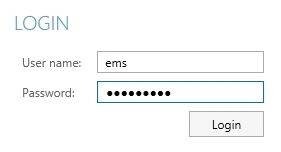
To start working with Viso you need to log in with the login name and password that you received from your colleague who manages the Viso set-up.
### procedure
1. Start Viso.
2. Enter the login details supplied by your colleague who manages the Viso set-up.
[](https://bookstack.noldus.com/uploads/images/gallery/2023-12/JCGcsBXoQGQ2N4c7-image.png)
## Notes
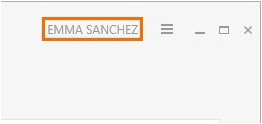
- When you are logged in, your user name is shown in the top-right corner of the Viso window. Click it to change your password or log out.
[](https://bookstack.noldus.com/uploads/images/gallery/2023-12/Y6ZfDTMPrGPh7p9Z-image.png)
- **TIP** Change your password the first time you log in. To do so, click your name in the top-right corner and choose **Change password**. You can only change your password if you are a local Viso user.
- Contact your colleague who manages the Viso set-up if you have lost your password.
- You can only be logged in once in Viso, independent whether this is via the regular Viso interface or via the Viso Web App. If you log in a second time, you will be logged out on the other Viso instance or webpage.