# Technical Support
[](https://bookstack.noldus.com/uploads/images/gallery/2023-12/A8iIJaCayDbAsZzh-image.png)
## Viso Menu
Viso’s menu contains the following support options:
### Viso Help
Opens the Viso Help. You can search and find help topics.
### Noldus Online
If your computer is connected to the Internet, choose this option to go to:
- **Viso Home Page** – The Viso home page on the Noldus website contains all kind of information about the program as well as examples of how Viso is used.
- **Customer Support Center** – Brings you to the MyNoldus section on the Noldus website. Create a new account or log into your existing account. On your MyNoldus page you can find the licenses and NoldusCare contracts associated with your account, you can download the latest version of the software, manuals and sample project, contact Support or request a Sales visit.
### About Viso
Choose this option to see details of your Viso version, or to open the End-User License Agreement and Acknowledgments of third-party applications.
## Technical Support
For questions about this or any other Noldus product, please contact the Support department. From the menu select **Noldus Online **and then **Customer Support Center** or browse to https://my.noldus.com. This brings you to the MyNoldus section on the Noldus website. Create a new account or log into your existing account. Under **Get support **you will find the contact details of the help desk in your region, you can view the status of your current support cases or submit a new support case.
[We offer 24 hour support via several help desks in different time zones.](http://www.noldus.com/support-center)
In order to provide adequate support, it is possible that we request you to supply us with video recordings made by your organization. Since May 25th 2018 the new GDPR rules apply to all people in the EEA (EU + Norway, Iceland and Liechtenstein). For this reason we need your signed consent that you agree with the fact that you have given us permission to use these video recordings. Please be aware that the persons who recognizable in the videos also have to give consent that the videos are sent to Noldus Information Technology BV and our technology partners, and that it is your responsibility to arrange this consent. More information regarding our Privacy policy can be found at: [https://www.noldus.com/legal/privacy-policy](https://www.noldus.com/legal/privacy-policy)
## Troubleshooting
### No camera view
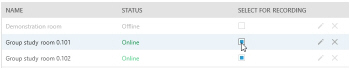
This happens if the connection with a camera was lost. Login as Technician. After the connection with the camera is restored, click on the **Select for recording** checkbox for the location with that camera and click on it again five seconds later, so deselect and select the location. The camera view should now be restored.
[](https://bookstack.noldus.com/uploads/images/gallery/2023-12/zTllLwKBRb4XVpI6-image.png)
### Sound problems
If you hear no sound on your recording, this could be because:
- The speakers of your computer are not plugged in, turned off or their volume is low.
- The Windows volume control is muted or turned low.
- You do not have an audio source connected.
- The recording volume is too low.
### Viso is slow
When Viso Viewer, Viso Recorder and Viso Services are all installed on one computer, the software may become very slow and the connection between the components may time out. Note that we recommend to install Viso Viewer on another computer than Viso Services and Viso Recorder.
To make sure that the software does not become slow when all components are installed on the same computer:
1. Open the **Control Panel** and choose **Network and Internet > Network and Sharing Center**.
2. Click **Change Adapter Settings**.
3. Right-click the **Local Area Network** and select **Properties**.
4. Select **Internet Protocol Version 4 (TCP/IPv4)** and click **Properties**.
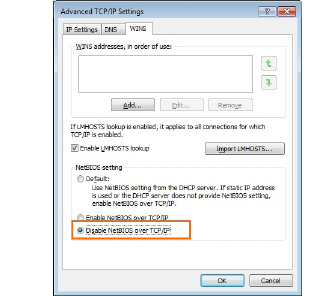
5. Click **Advanced** and open the tab **WINS**.
6. Select **Disable NetBIOS over TCP/IP**.
[](https://bookstack.noldus.com/uploads/images/gallery/2023-12/9V4A4F8tSKzJPY4a-image.png)
Viso may also become slow if the network cables are not connected properly, or if some cables have defects. If the system is slow, check the speed of the network cables. To do so:
Open the **Control Panel** and choose **Network and Internet > Network and Sharing Center.**
1. Click **Change Adapter Settings**.
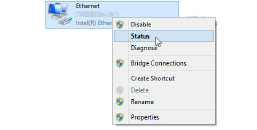
2. Right-click the **Ethernet connection** you want to diagnose and select **Status.**
[](https://bookstack.noldus.com/uploads/images/gallery/2023-12/0UVUb4bp0aj7LnTZ-image.png)
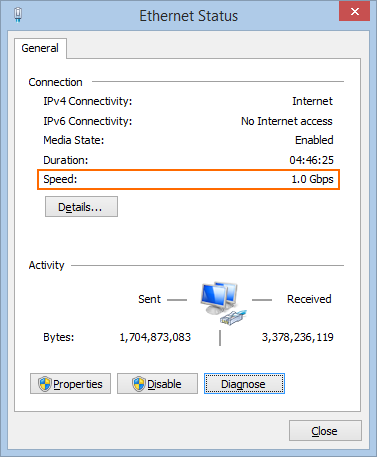
3. Check the speed in the window that appears. It should be at least 1 Gb per second.
[](https://bookstack.noldus.com/uploads/images/gallery/2023-12/72h5V8wfeOaXg7g8-image.png)